Storage Management
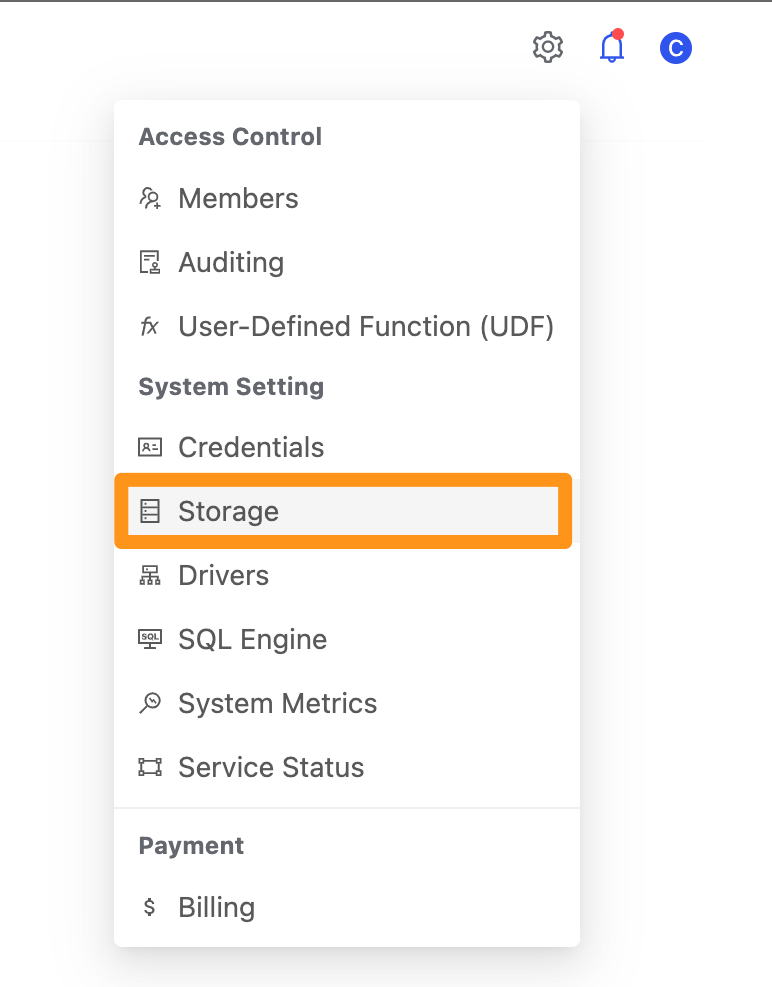
Click the settings icon and select Storage to open the Storage page.
On the Storage page, the admin can view detailed information about all system data storage.
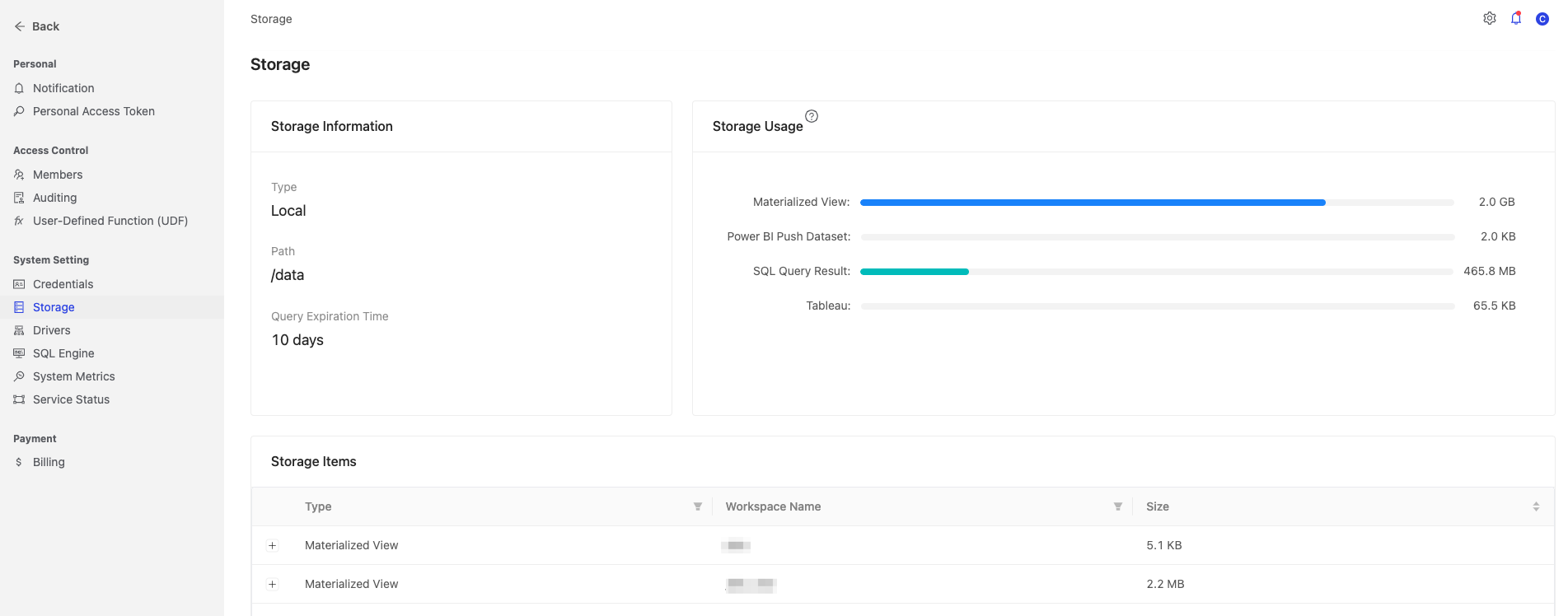
Storage Information

- Type: The storage type, e.g.
Local(built-in),S3,Blob. - Depending on the storage type, different location information is shown. For example:
- Built-in
Local: shows Path and your storage path (default /data). - AWS
S3: shows Bucket and your bucket path. - Azure
Blob: shows Account, Container, and related information.
- Built-in
- Query Expiration Time: How long SQL execution results from the SQL Editor in the Analysis module are retained. The default is 10 days. This cannot be changed in the UI; to change it, contact the Canner operations team during installation or upgrade.
Storage Usage
This section shows how much storage each resource uses. The system tracks usage for three resources: Materialized View, SQL Query Result, and Tableau.

Usage is updated at one of two frequencies, depending on the resource type:
- Real-time:
Materialized ViewandSQL Query Result - Scheduled (every 12 hours):
Tableau
Hover over a bar to see when that resource was last updated.

Storage Items
This section shows how much storage each resource uses in each workspace. Click the + button to see more details.

In the example below for SQL Query Result, clicking the + button expands the SQL statement of each query in the Data Team workspace and the storage used by its results.

Each expanded item shows at most the top 10 entries by usage
In the example below for Materialized View, clicking the + button expands the storage used by each Materialized View. Click the Materialized View name mv_lineitem to go to the workspace and view this Materialized View.

The page after clicking the Materialized View name mv_lineitem:

You can filter and sort by the following three column headers.
-
Type: Filter by resource type

-
Workspace Name: Filter by workspace

-
Size: Click the arrow icon to sort by size, ascending or descending
