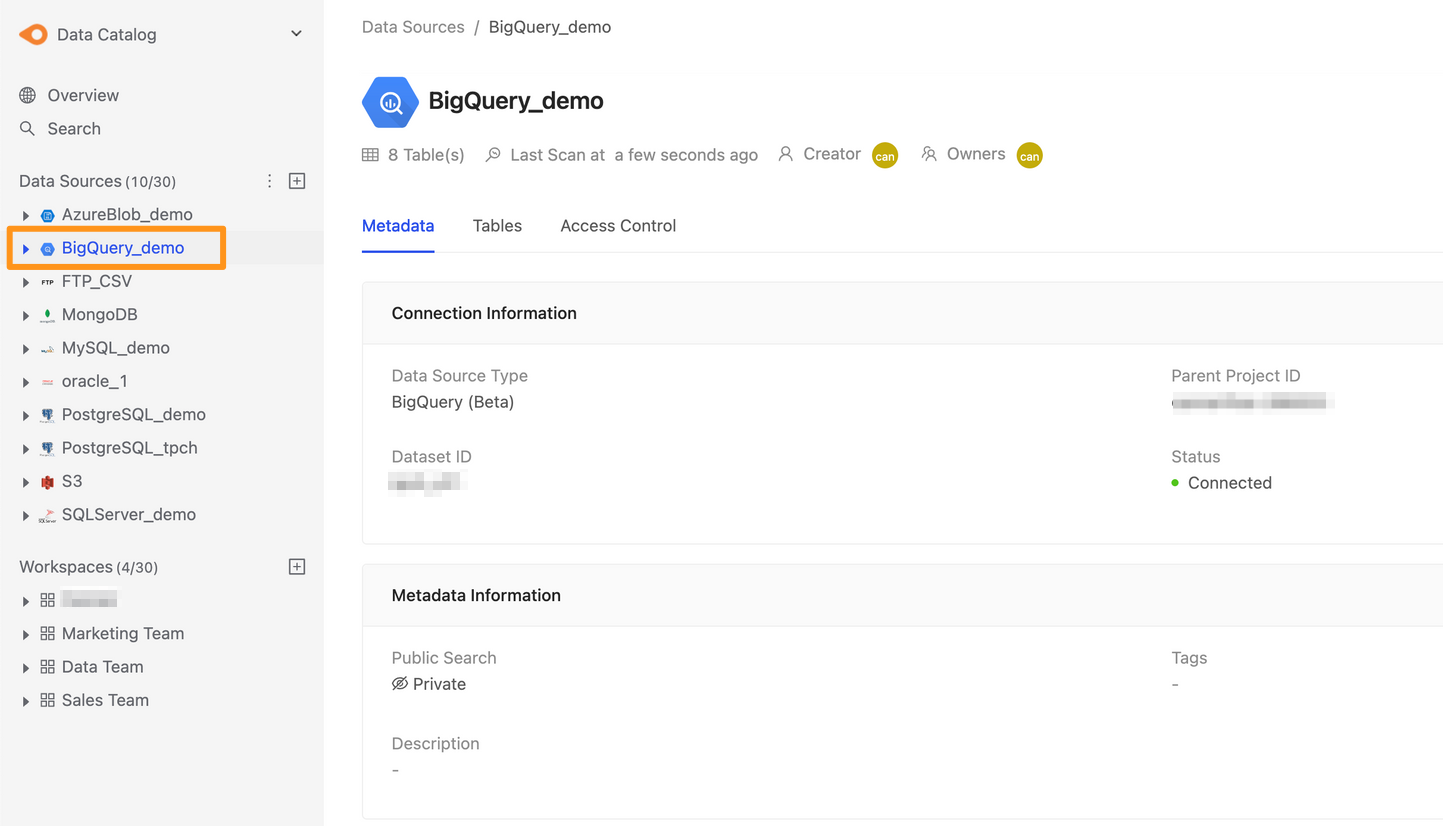
BigQuery
- View is not supported
- Does not support
BIGNUMERIC(alias toBIGDECIMAL),GEOGRAPHYetc Type
Step 1: Prepare Service Account
Canner Enterprise uses Service Account Authentication to operate Google Cloud APIs, so it is necessary to prepare Service Account.
Please refer to Google Cloud Authenticating as a service account > Creating a service account section
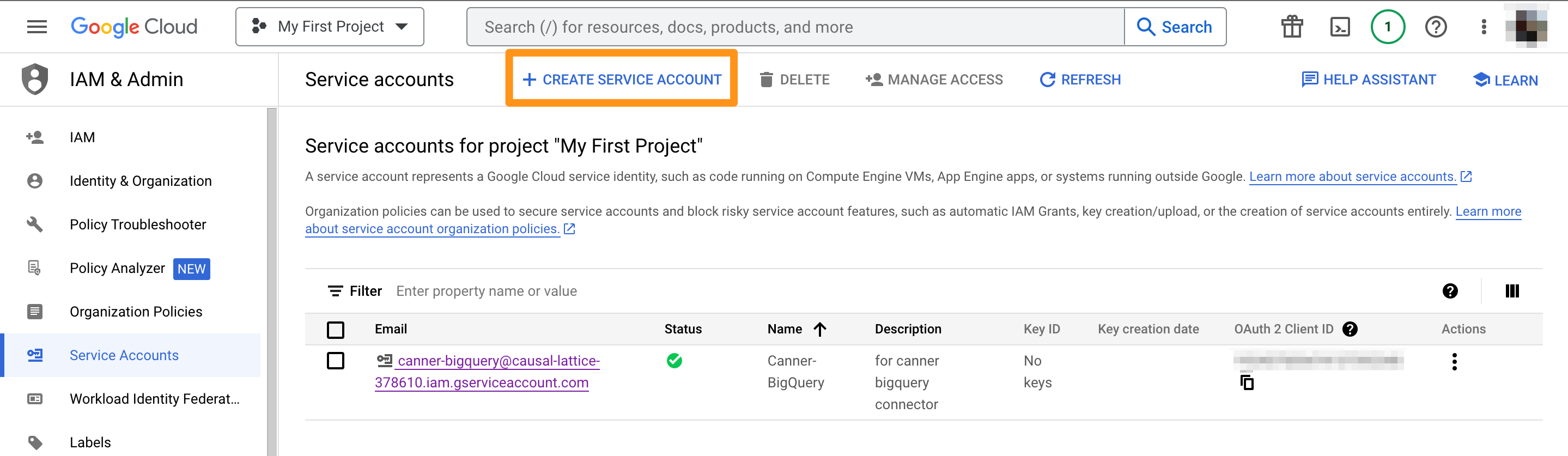
- Go to Google Cloud
Create Service Accountpage - Select the project
- Start to create a service account (Service Account); enter the information like the following
- Click Continue, and in the second step, grant two roles,
BigQuery Data ViewerandBigQuery User.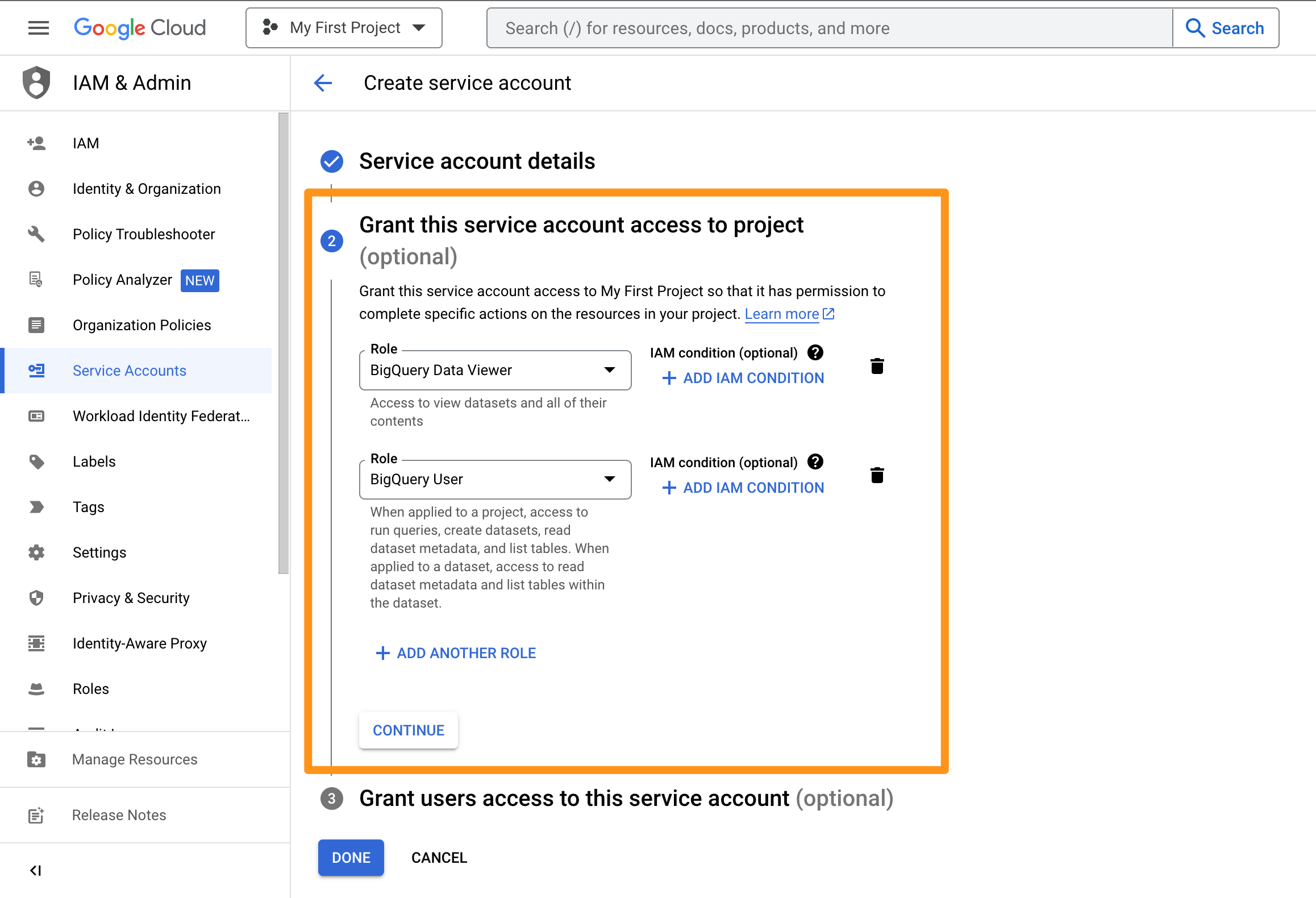
- Skip the third step, click Finish, and then return to the list screen. Click the service account just created
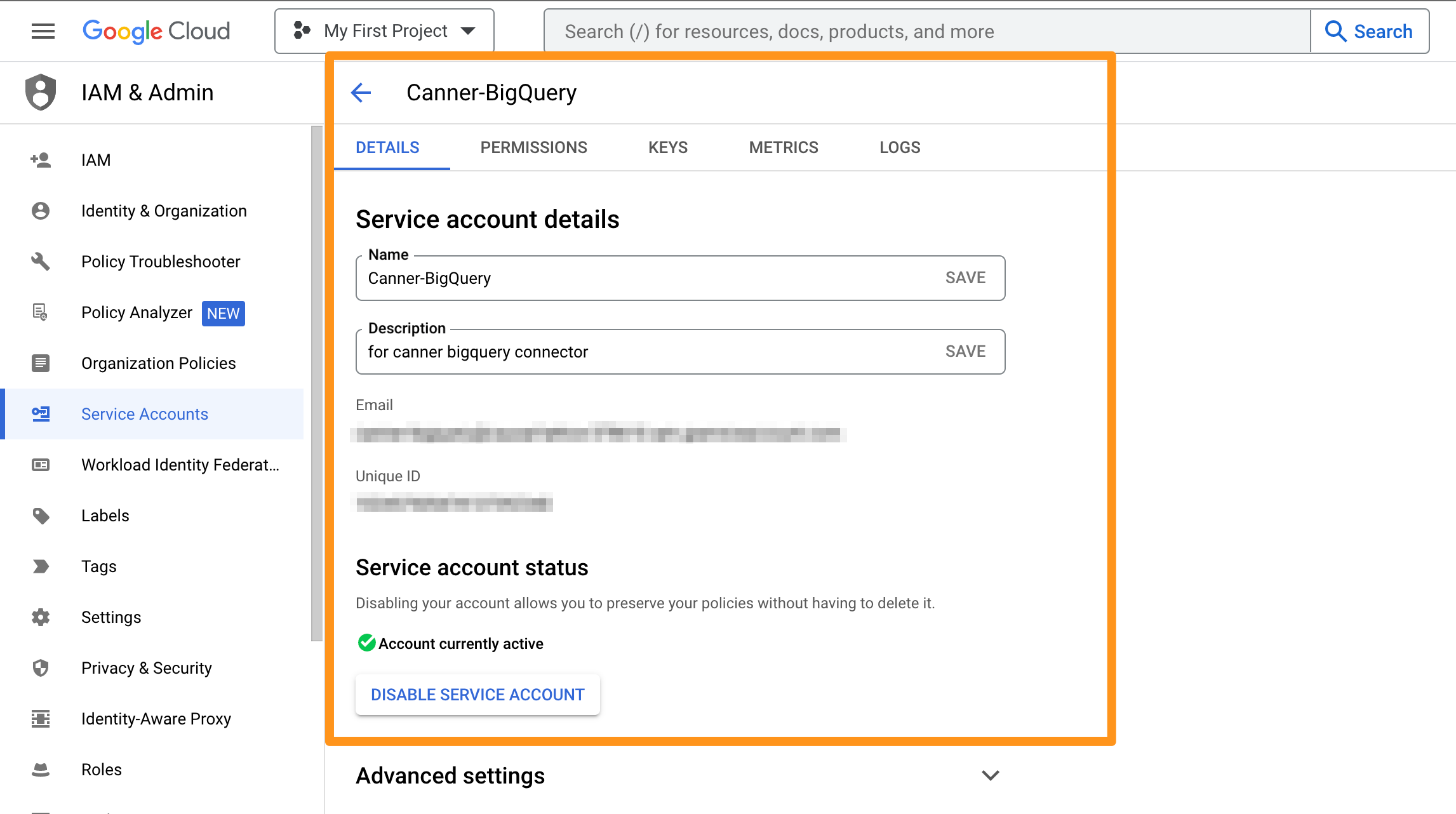
- Click
Key, clickAdd Key, select the JSON type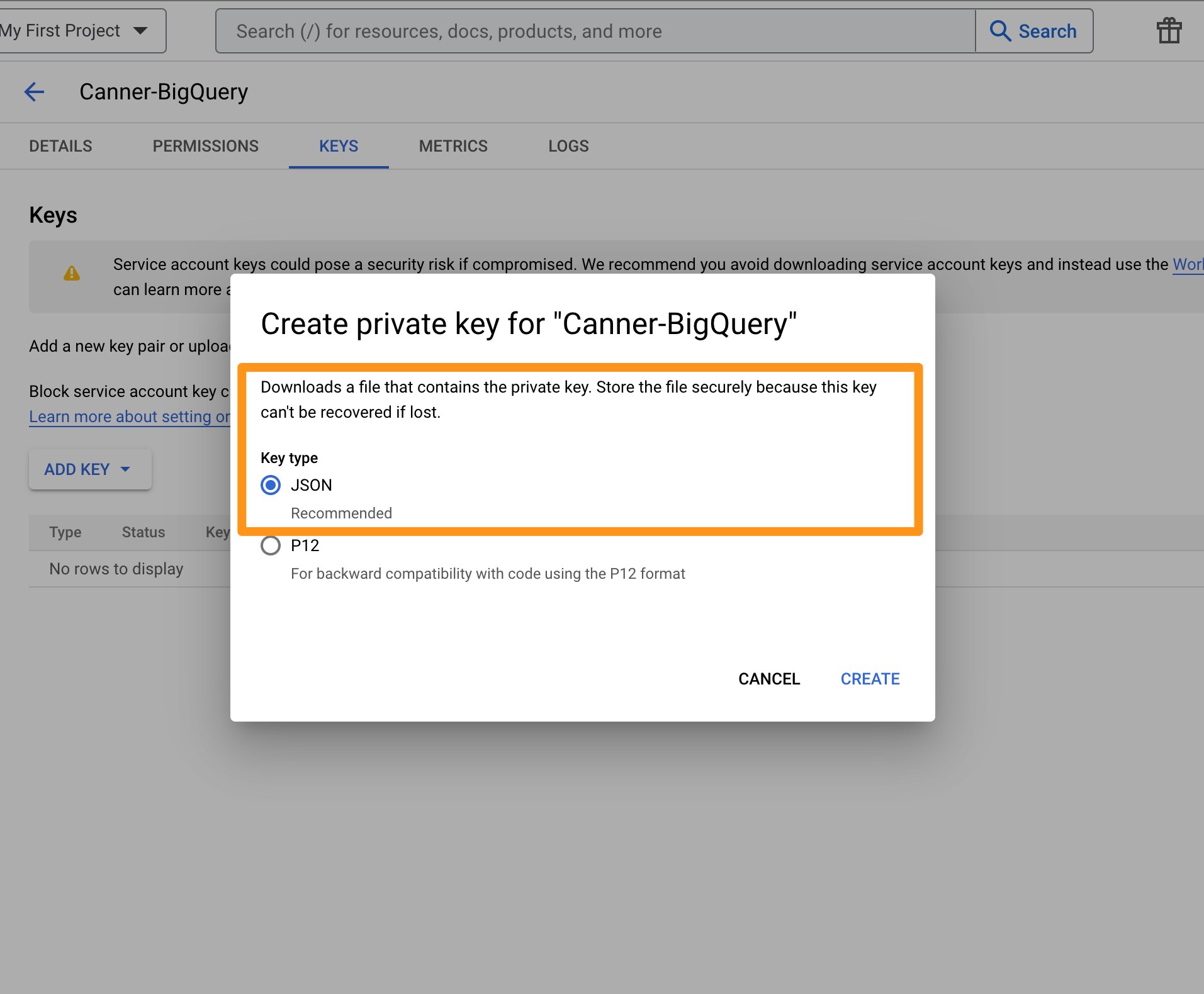
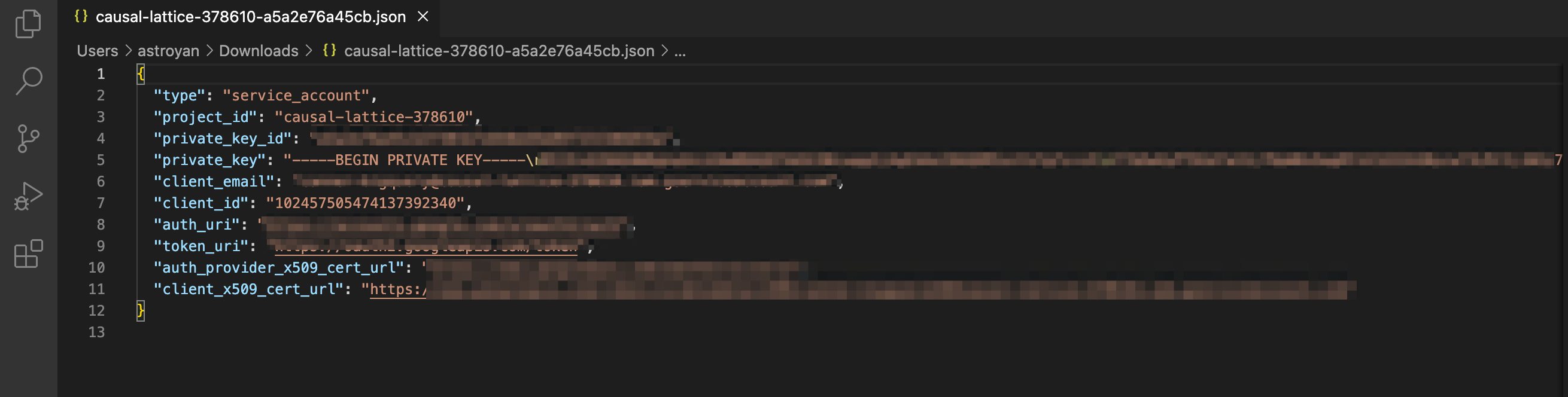
- The downloaded JSON content will be as follows
Step 2: Create Data Sources
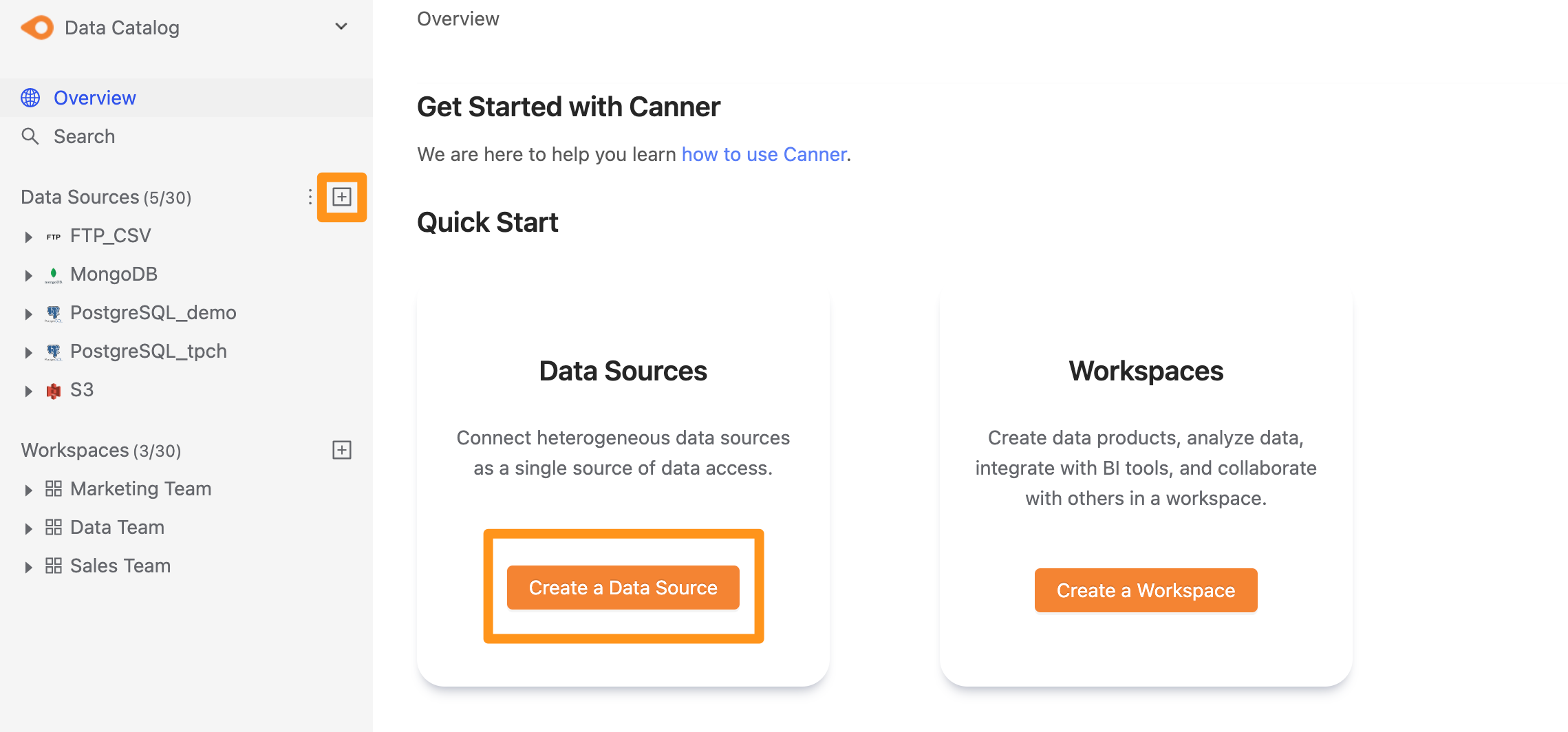
You can create a data source through the following two operations. The first is to click the "+" button on the sidebar Data Source or click the Create a Data Source button on the Overview page to create.
Step 3: Set connection information
In the pop-up form, fill in and set the connection information, and click Submit to send.
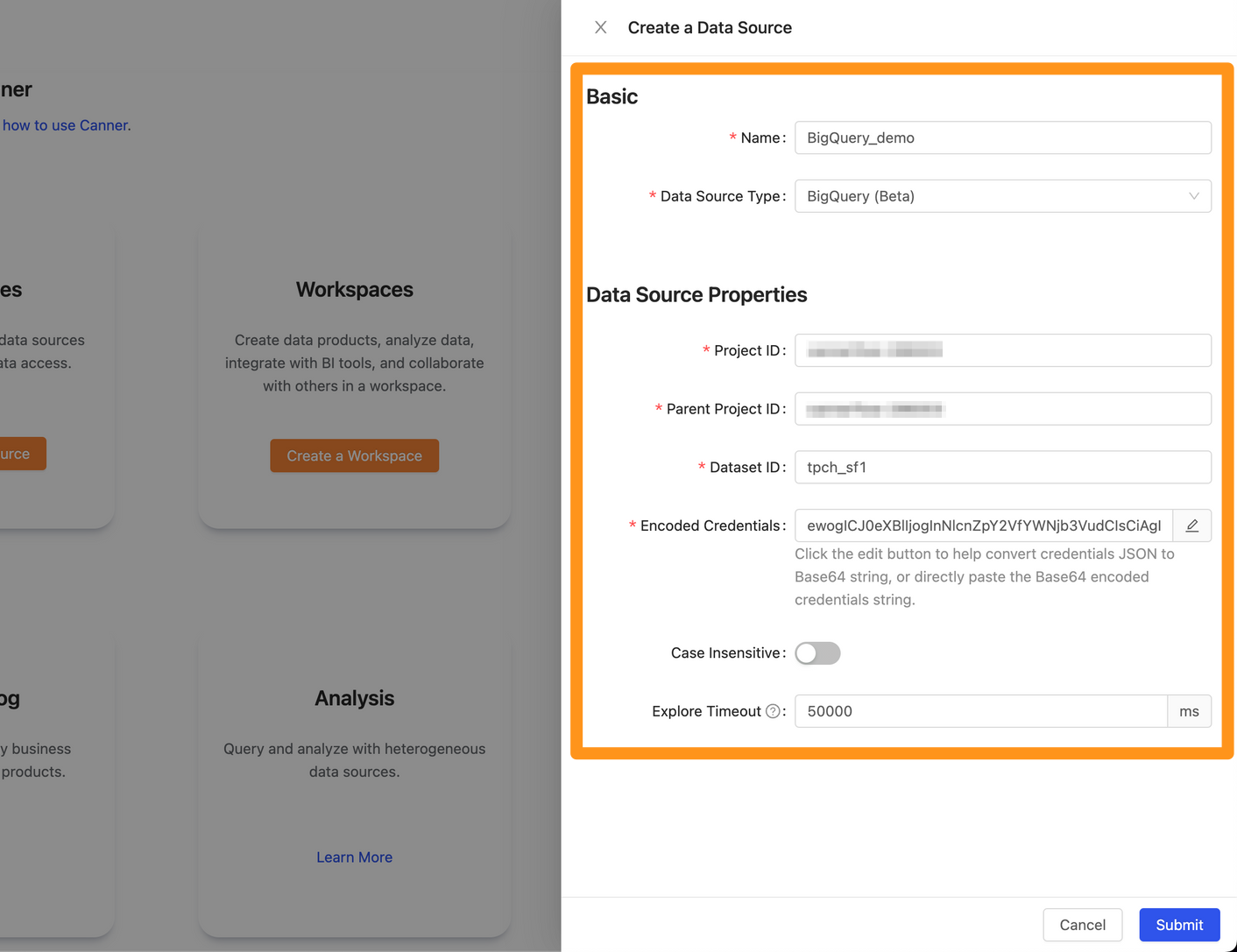
Name: database name, for display, can be modified laterData Source Type: database type, please chooseBigQueryProject ID: Please fill in the Project ID on GCPParent Project ID: Please fill in the Parent Project ID of the Project ID on GCPDataset ID: Dataset ID to be connectedCase Insensitive: If the Table name and Column name are both lowercase, checked this setting. The speed of exploring the Table Schema will be fasterExplore Timeout: If the database contains a large number of Tables, you can try to increase the timeout time.
-
On the BigQuery screen, on the Dataset to be connected, click
Openin the more options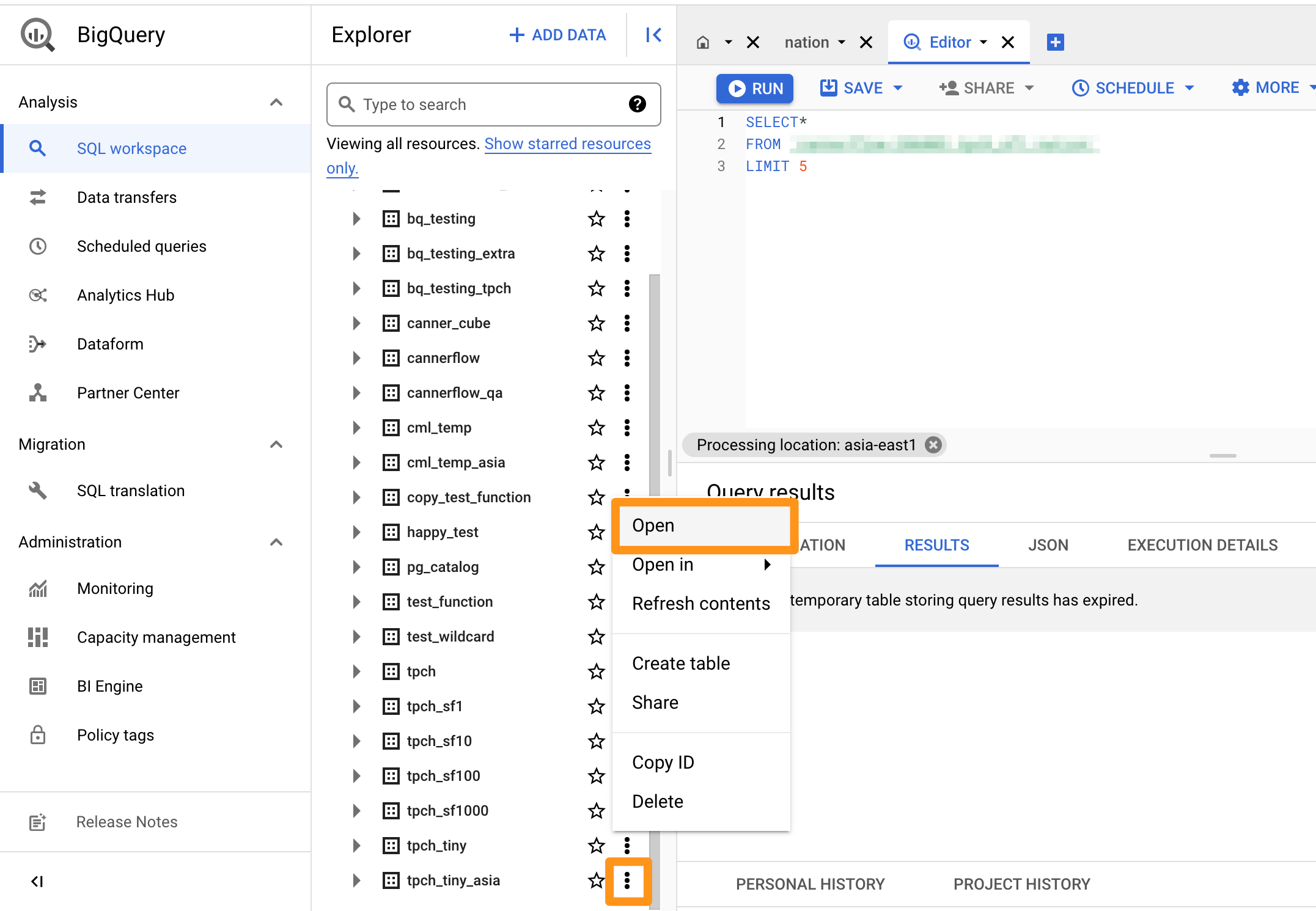
-
In the information, you can see the string
project_id:dataset_id. Here you can get theProject ID,Dataset ID,andParent Project IDif there is no particular setting usually the same asProject ID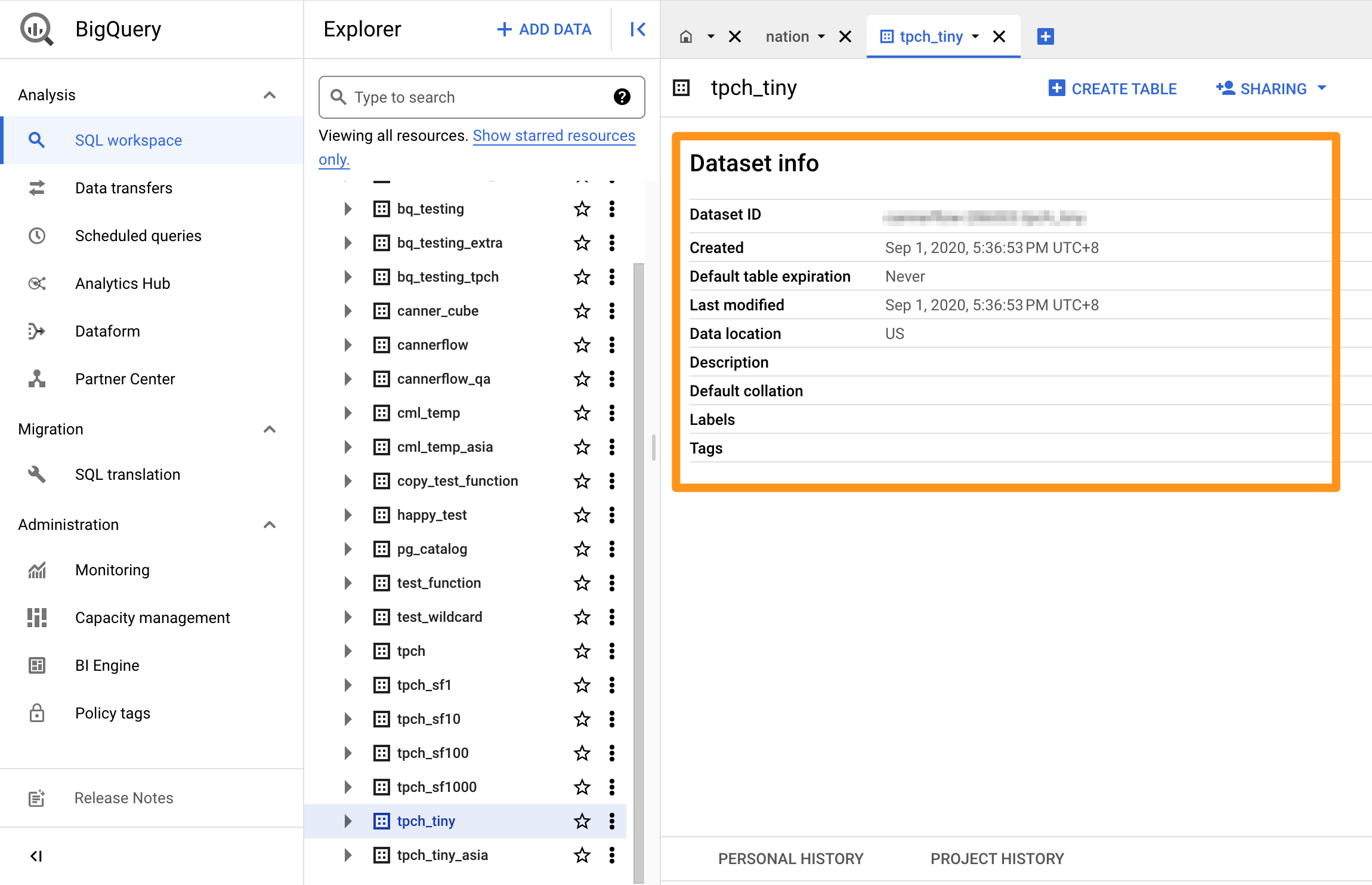
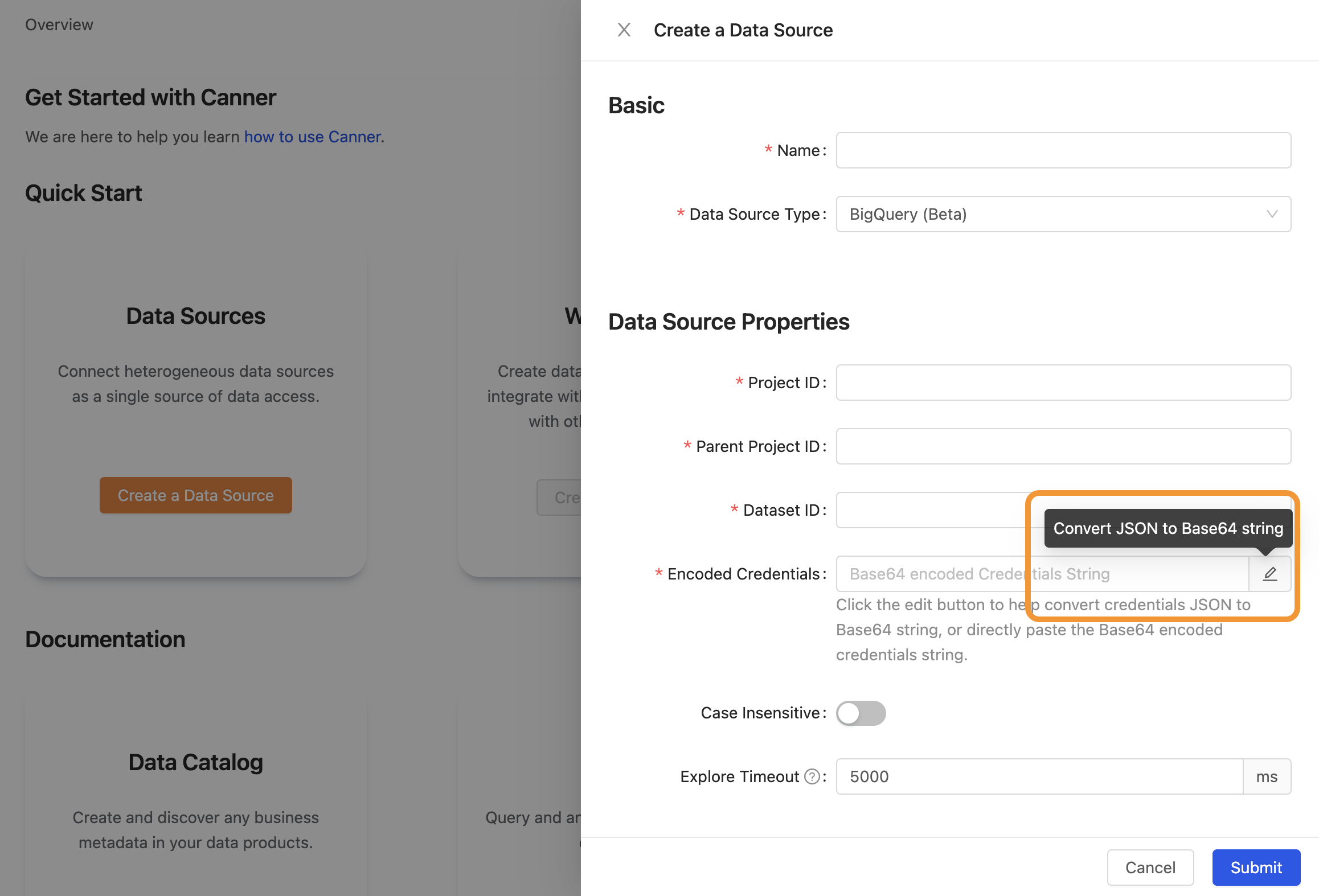
Encoded Credentials: Key content of Service Account
- Click the pencil icon to the right of the input
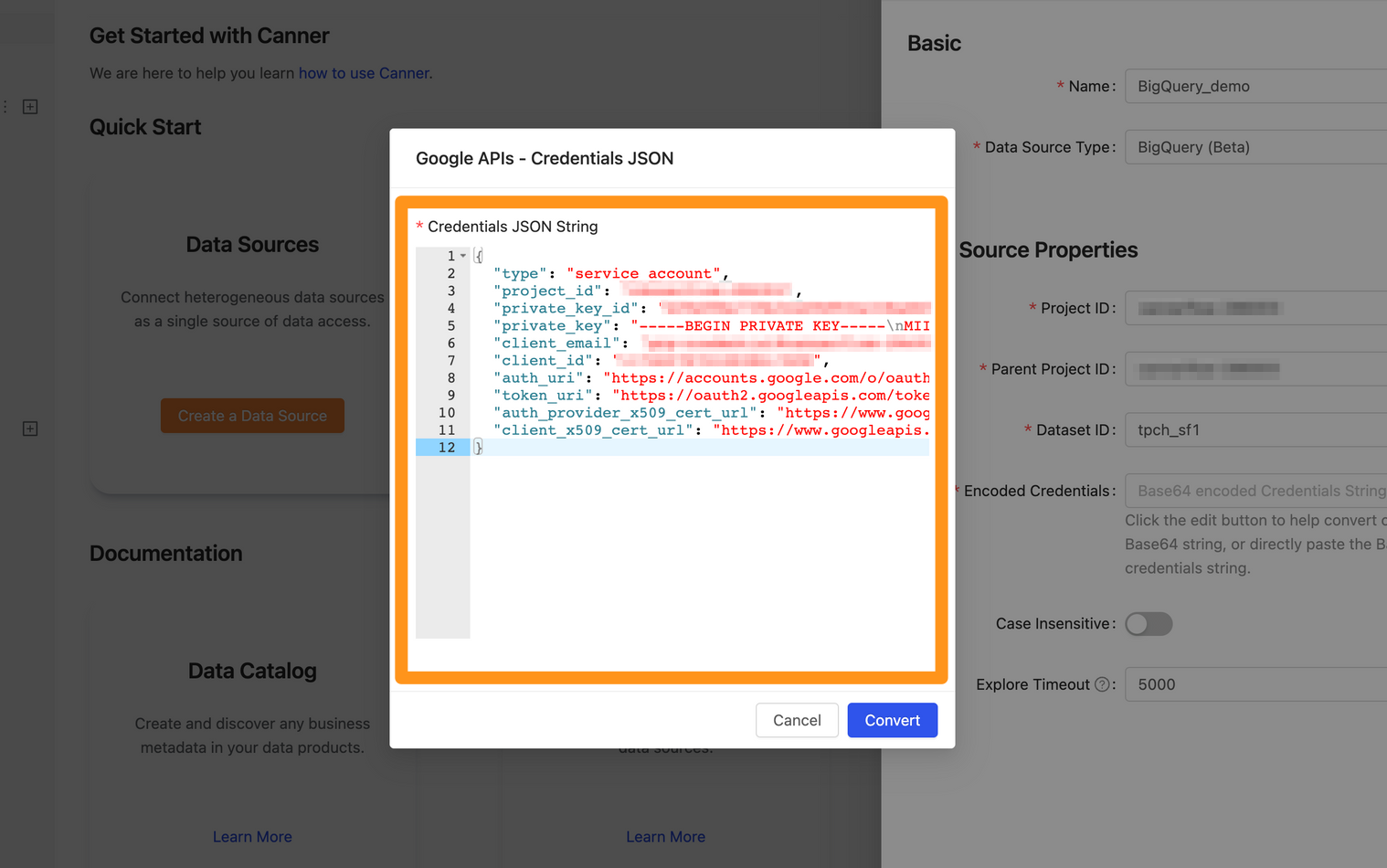
- After pasting the JSON content in Step1 in the pop-up window, click "Convert" to return to the form and continue filling in other fields
Step 4: Complete the build
After Submitting, the BigQuery data source will show up in the sidebar in a few moments, and you can click to enter the data source details page.