Looker Studio
In this article, you can learn how to get data from Looker Studio to Canner Enterprise.
The median calculation is not supported
Set Canner Enterprise as Looker Studio data source
Step 1: Set the data source
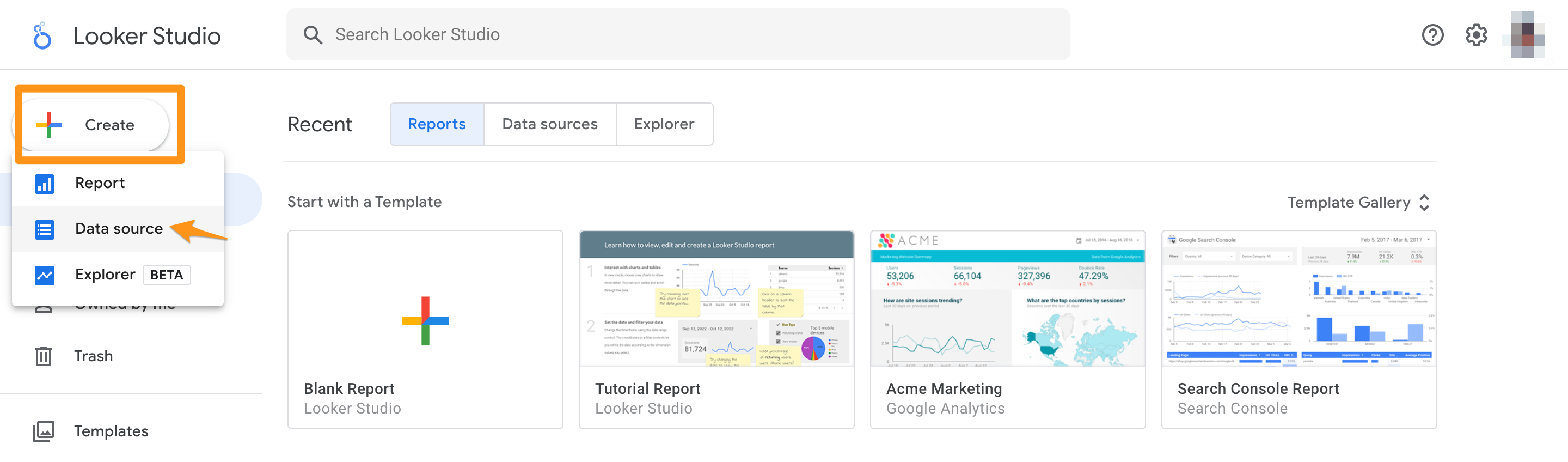
Click the' Create' button from the Looker Studio main screen and select the Data Source option.
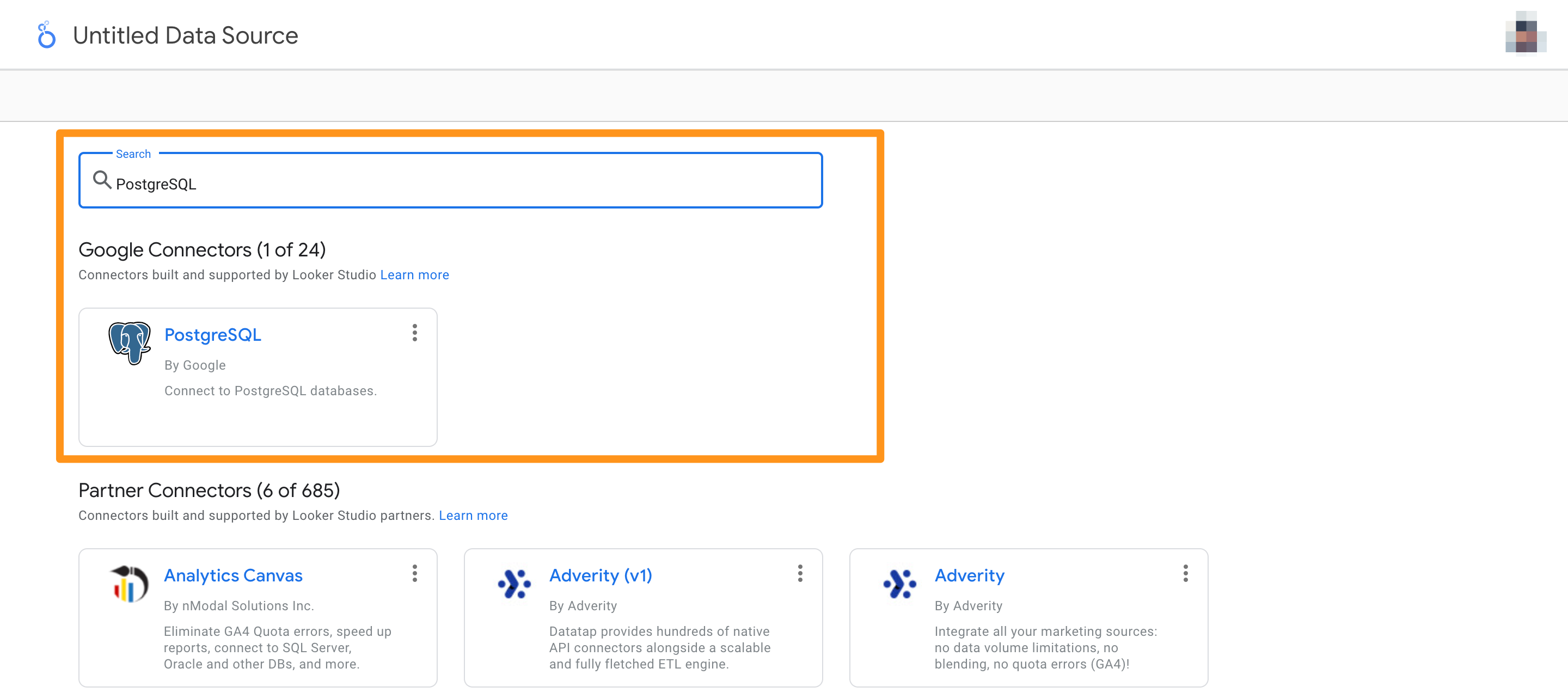
After selecting the Data Source option, enter PostgreSQL in the screen and select it.
Step 2: Set connection information
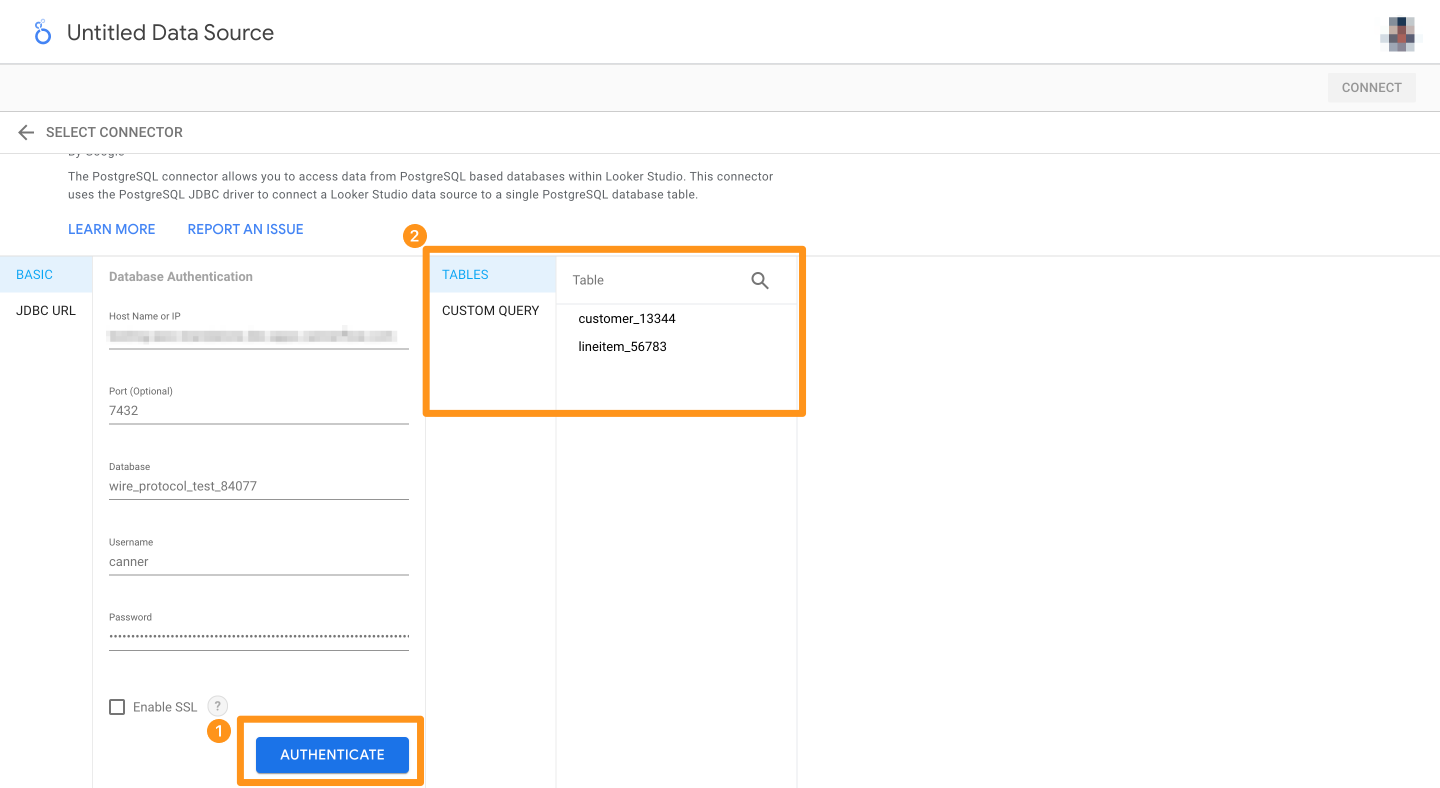
Set the connection information in the following window.
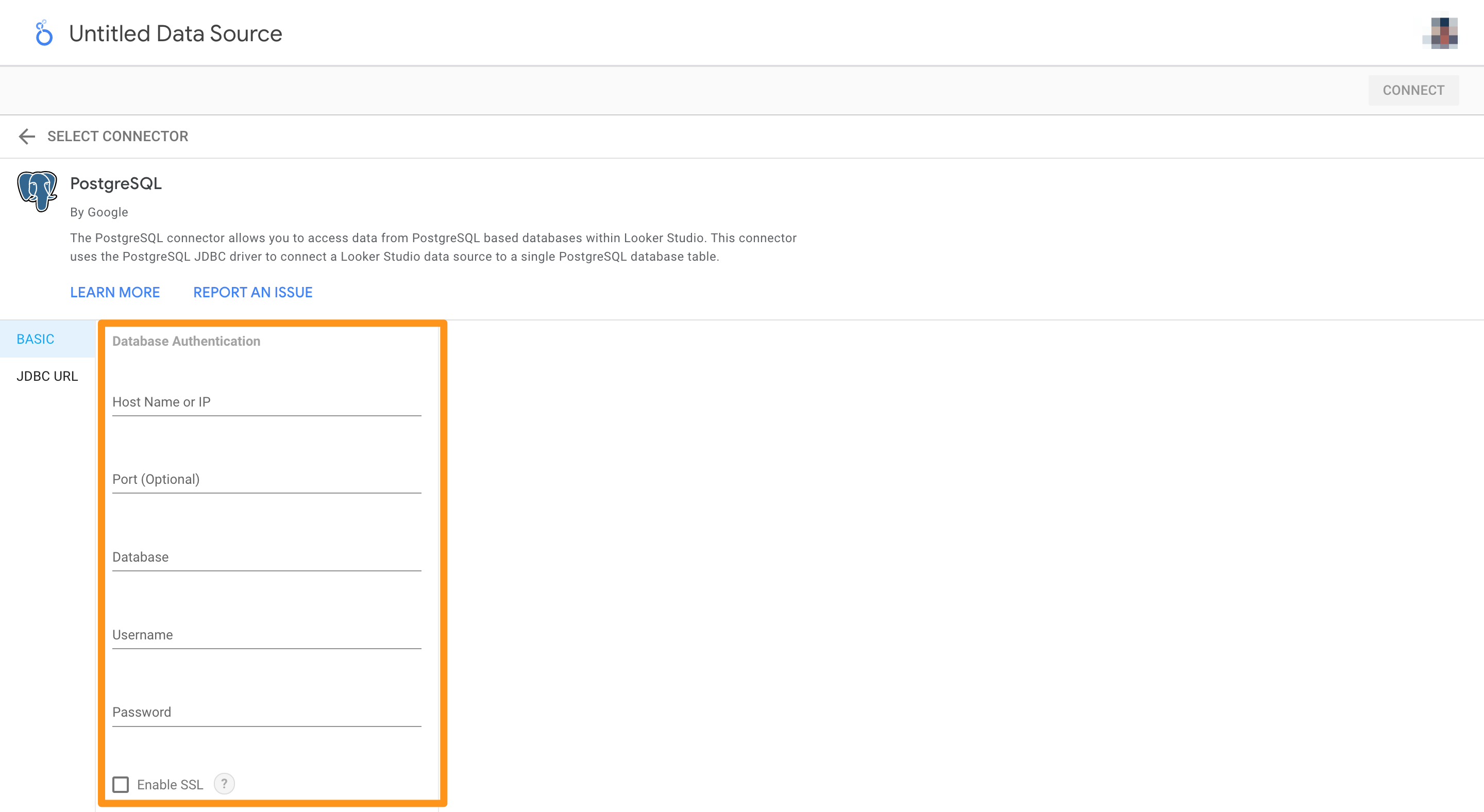
- Host: Fill in the Host or IP address of Canner Enterprise
- Port: usually
7432; if there is a particular port setting, please pay attention to this field - Database: Enter the SQL Name in Workspace
- User:
canner - Password: Fill in Personal Access Token to create Personal Access Token Way
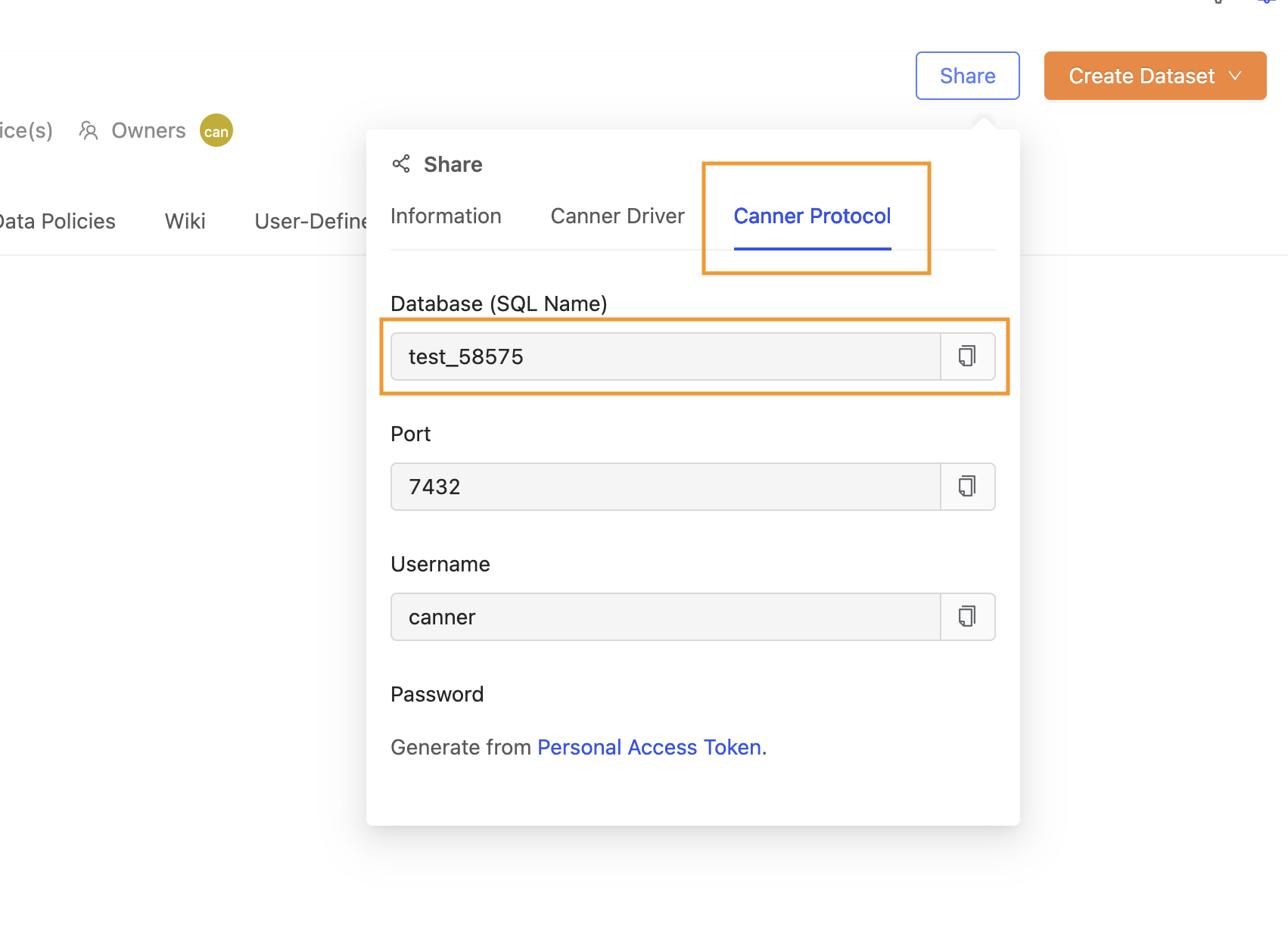
When setting relevant field information, you can click the Share button on the top right of the workspace you want to connect to Looker Studio in Canner Enterprise and switch to Canner Protocol to view its connection information.
After filling in the connection information, click the AUTHENTICATE button, and you can see the information under the workspace of Canner Enterprise.
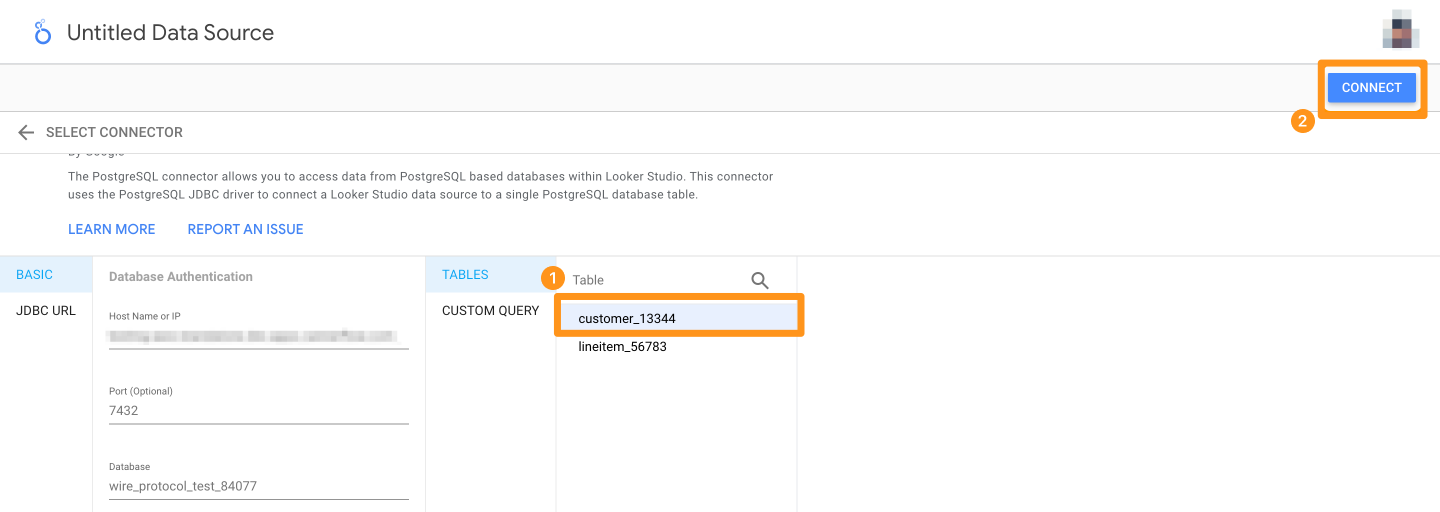
Select the data to be connected. At this time, you will find that the CONNECT button on the upper right changes to a clickable state, and you can click to connect.
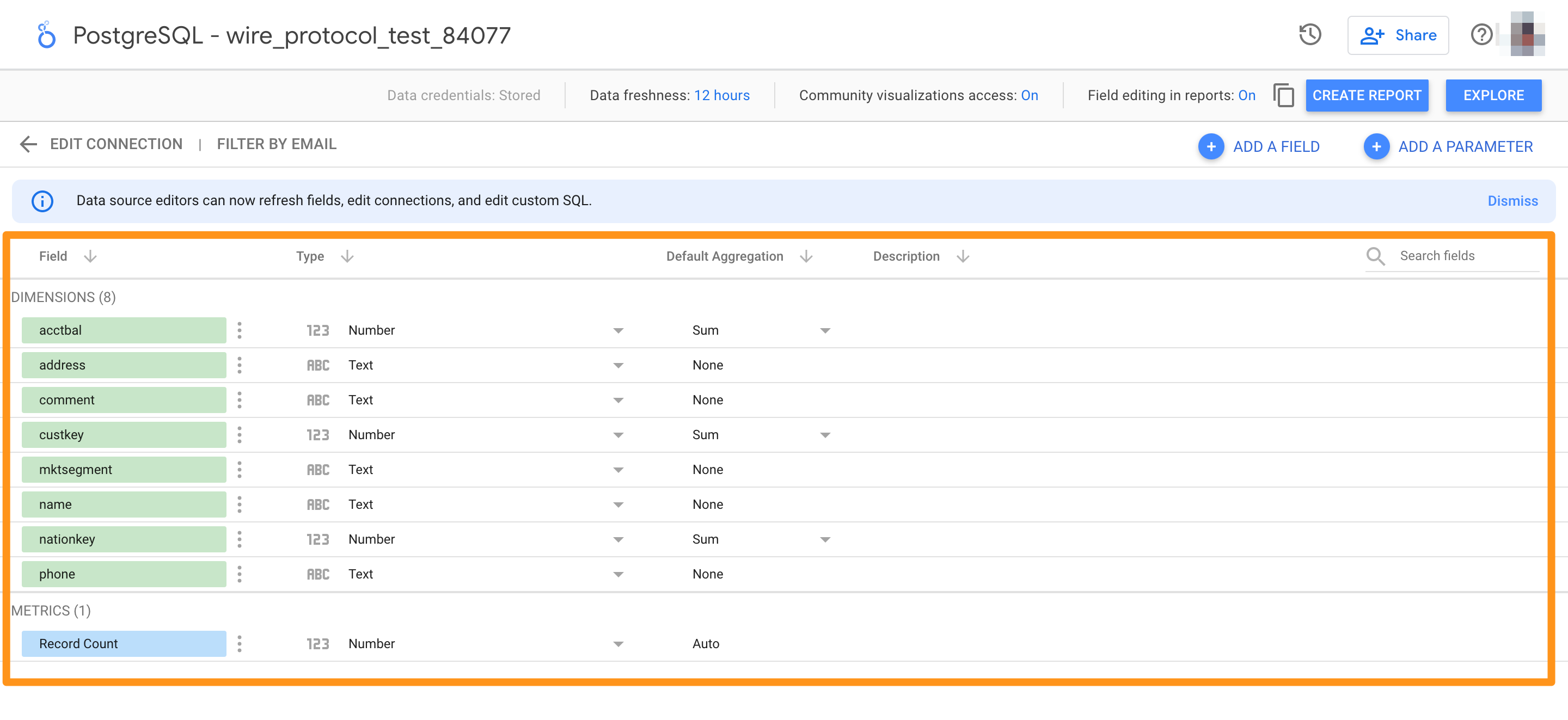
Step 3: Connection completed
When the connection is completed, Looker Studio will jump to the screen below.