Deploy Canner Enterprise on AWS
This is a step-by-step guide for deploying Canner Enterprise on the Amazon Web Service (AWS) cloud. Before you start, you should be familiar with AWS Services including VPC, EKS, EC2, RDS, S3, Route53, ALB, IAM Roles and also using CLI. For more details, please refer to the AWS documentation.
Architecture
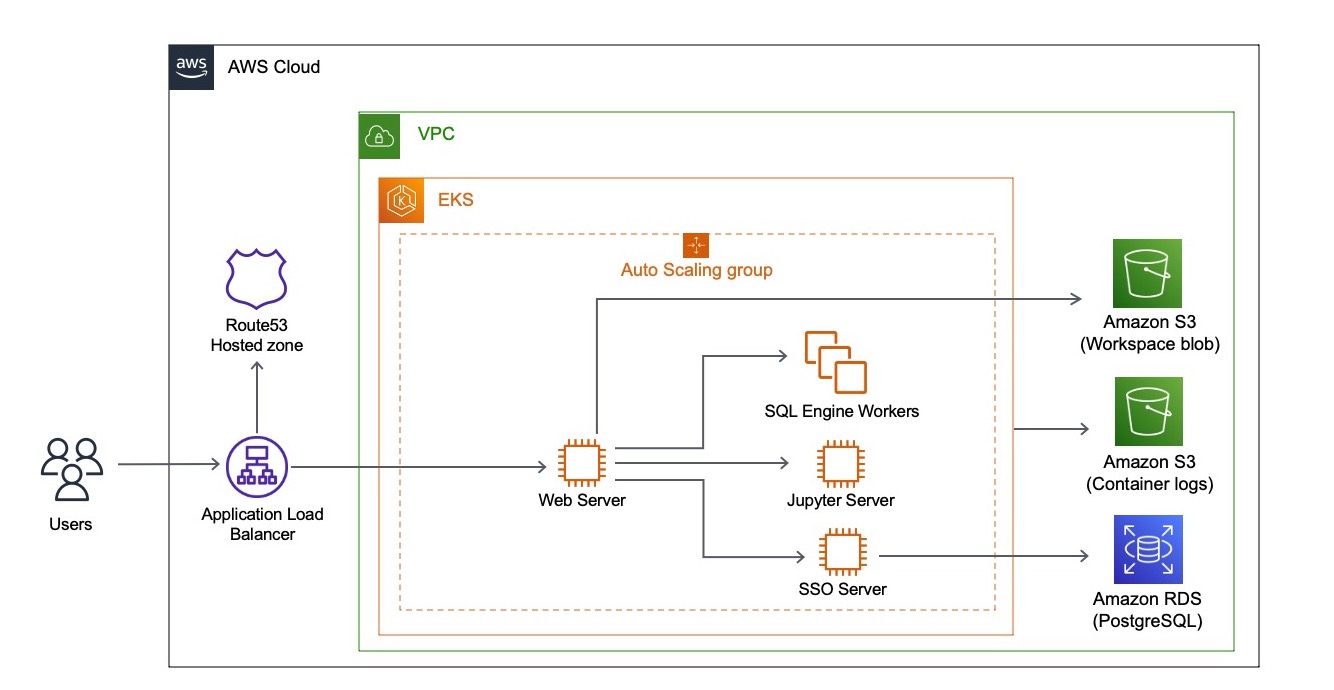
This diagram shows a typical AWS deployment on Amazon Elastic Kubernetes Service (Amazon EKS) in a VPC.
AWS Services
The following services are used in a typical Canner Enterprise deployment on AWS:
| AWS Services | Description |
|---|---|
| VPC | Due to security reasons, we suggest creating a VPC for use of Canner Enterprise only. We also support deploying on an existing VPC in case your organization has a centralized management policy.You will not need to work on setting VPC Peering and Security Groups if your VPC already has the ability to connect Amazon RDS. |
| Subnets | You have the option to deploy in subnets. If so, your subnets should be public and we suggest creating 2 Availability Zones with 1 Subnet in each zone (totally 2 Subnets). For more information, see VPCs and Subnets. |
| EKS (Elastic Kubernetes Service) | Canner Enterprise will be running on Amazon EKS. Canner Enterprise can be deployed on all regions that support EKS. |
| Auto Scaling Group | Canner Enterprise uses Amazon EC2 Auto Scaling Groups to automatically scale your resources (number of instances) up or down to meet changing demands. And the auto scaling groups are configured to launch instances that automatically join the EKS cluster. |
| RDS (PostgreSQL) | We store data source credentials in Amazon RDS with encryption. all the credentials and keys will rotate automatically. |
| ALB (Application Load Balancer) | Canner Enterprise uses 1 ALB to handle all client requests. |
| Route53 Hosted Zone | Users will connect to Canner Enterprise services through <app name>.<client name>.default.apps.cannerdata.com. The DNS settings are stored in a Route53 Hosted Zone. |
| S3 Buckets (Simple Storage Service) | Canner Enterprise uses 2 Amazon S3 buckets for storage, one for storing Material View, Cache, and Workspace data; another one for storing logs. |
| ACM Certificate | 1 ACM certificate for Canner domain that can be used on ALB. |
Prerequisites
Before you begin, please ensure that you fulfill the following requirements:
- An administrative AWS account.
- Make sure you are able to make requests to external networks during the installation.
- You can connect to Canner Enterprise through Port 80 & 443 using a browser.
Deployment Steps
Preparing AWS VPC and Subnets
- An internet gateway must be attached to the VPC.
- Your subnets must be public (with route table config).
- Enable auto-assign public IPv4 address.
References for checking:
aws ec2 describe-subnets:MapPublicIpOnLaunchshould be true.aws ec2 describe-route-tables:igwshould be in the route table.
Preparing a Certification
Create a certification with domain *.default.<client-name>.apps.cannerflow.com that can be used on ALB.
Preparing AWS Account Roles
Have an AWS account role defined to allow Canner Enterprise to assume other roles. The following Policies or Roles will be assumed to the role.
| Services | Policies or Roles | Description |
|---|---|---|
| Workspace S3 Bucket | Policy | Access to the created workspace blob S3 bucket. |
| Log S3 Bucket | Policy | Access to the created log S3 bucket. |
| AutoScaling | Policy | Access for setting AutoScaling. |
| ALB | Policy | Access for setting ALB. |
| Hosted Zone | Policy | Access to the created Hosted Zone. |
| EKS Master Node Role | Role | For launching EKS |
| EKS Worker Node Role | Role | For launching EKS |
| IAM Roles | Role |
|
References for role settings:
{
    "Version": "2012-10-17",
    "Statement": [
        {
            "Sid": "CreateResource",
            "Effect": "Allow",
            "Action": [
                "rds:CreateDBSubnetGroup",
                "rds:CreateDBInstance",
                "rds:DescribeDBInstances",
                "rds:ListTagsForResource",
                "rds:ModifyDBInstance",
                "rds:DescribeDBSubnetGroups",
                "s3:GetBucketWebsite",
                "s3:GetReplicationConfiguration",
                "s3:GetLifecycleConfiguration",
                "s3:GetBucketTagging",
                "s3:ListBucket",
                "s3:PutBucketTagging",
                "s3:GetBucketVersioning",
                "s3:GetBucketCORS",
                "s3:CreateBucket",
                "s3:GetBucketObjectLockConfiguration",
                "s3:PutBucketCORS",
                "s3:GetBucketLogging",
                "s3:GetAccelerateConfiguration",
                "s3:GetEncryptionConfiguration",
                "s3:GetBucketRequestPayment",
                "s3:GetBucketLocation",
                "route53:ListHostedZones",
                "route53:ListTagsForResource",
                "route53:GetHostedZone",
                "route53:ListResourceRecordSets",
                "route53:CreateHostedZone",
                "route53:ChangeResourceRecordSets",
                "route53:GetChange",
                "iam:PutRolePolicy",
                "iam:GetRolePolicy",
                "iam:AddRoleToInstanceProfile",
                "iam:CreateInstanceProfile",
                "iam:GetRole",
                "iam:TagRole",
                "iam:PassRole",
                "iam:CreatePolicy",
                "iam:GetPolicy",
                "iam:CreateServiceLinkedRole",
                "iam:UpdateAssumeRolePolicy",
                "iam:GetPolicyVersion",
                "iam:CreateRole",
                "iam:AttachRolePolicy",
                "iam:ListAttachedRolePolicies",
                "iam:GetInstanceProfile",
                "ec2:AuthorizeSecurityGroupIngress",
                "ec2:AttachInternetGateway",
                "ec2:CreateRoute",
                "ec2:CreateInternetGateway",
                "ec2:RevokeSecurityGroupEgress",
                "ec2:DescribeVpcClassicLinkDnsSupport",
                "ec2:CreateTags",
                "ec2:RevokeSecurityGroupIngress",
                "ec2:CreateSubnet",
                "ec2:DescribeSubnets",
                "ec2:CreateVpc",
                "ec2:DescribeVpcAttribute",
                "ec2:ModifySubnetAttribute",
                "ec2:DescribeAvailabilityZones",
                "ec2:DeleteLaunchTemplateVersions",
                "ec2:DeleteLaunchTemplate",
                "ec2:DescribeSecurityGroups",
                "ec2:CreateLaunchTemplate",
                "ec2:DescribeVpcs",
                "ec2:AcceptVpcPeeringConnection",
                "ec2:AssociateVpcCidrBlock",
                "ec2:AssociateRouteTable",
                "ec2:DescribeInternetGateways",
                "ec2:GetLaunchTemplateData",
                "ec2:ModifyVpcPeeringConnectionOptions",
                "ec2:CreateVpcPeeringConnection",
                "ec2:DescribeNetworkAcls",
                "ec2:DescribeRouteTables",
                "ec2:EnableVpcClassicLink",
                "ec2:DescribeLaunchTemplates",
                "ec2:DescribeVpcPeeringConnections",
                "ec2:CreateRouteTable",
                "ec2:DescribeVpcClassicLink",
                "ec2:DeleteTags",
                "ec2:CreateSecurityGroup",
                "ec2:ModifyVpcAttribute",
                "ec2:AuthorizeSecurityGroupEgress",
                "ec2:DescribeTags",
                "ec2:DeleteRoute",
                "ec2:DescribeLaunchTemplateVersions",
                "ec2:CreateLaunchTemplateVersion",
                "ec2:DescribeImages",
                "ec2:ModifyLaunchTemplate",
                "ec2:EnableVpcClassicLinkDnsSupport",
                "ec2:RunInstances",
                "ec2:DescribeAccountAttributes",
                "ec2:DescribeInstances",
                "secretsManager:GetRandomPassword",
                "secretsManager:TagResource",
                "secretsManager:CreateSecret",
                "secretsManager:UpdateSecret",
                "secretsmanager:PutSecretValue",
                "secretsmanager:GetSecretValue",
                "acm:AddTagsToCertificate",
                "acm:RequestCertificate",
                "acm:ListTagsForCertificate",
                "acm:DescribeCertificate",
                "autoscaling:CreateLaunchConfiguration",
                "autoscaling:DescribeAutoScalingGroups",
                "autoscaling:UpdateAutoScalingGroup",
                "autoscaling:DescribeTags",
                "autoscaling:CreateOrUpdateTags",
                "autoscaling:CreateAutoScalingGroup",
                "autoscaling:DescribeLaunchConfigurations",
                "autoscaling:DescribeScalingActivities",
                "autoscaling:DescribeScheduledActions",
                "autoscaling:ResumeProcesses",
                "autoscaling:SuspendProcesses",
                "elasticloadbalancing:CreateLoadBalancer",
                "elasticloadbalancing:DescribeLoadBalancers",
                "eks:CreateCluster",
                "eks:DescribeCluster"
            ],
            "Resource": "*"
        },
        {
            "Sid": "CloudFormationLookUp",
            "Effect": "Allow",
            "Action": [
                "ec2:DescribeVpcs",
                "ec2:DescribeSubnets",
                "ec2:DescribeRouteTables",
                "ec2:DescribeVpnGateways"
            ],
            "Resource": "*"
        },
        {
            "Sid": "TaggingResource",
            "Effect": "Allow",
            "Action": "ec2:CreateTags",
            "Resource": [
                "arn:aws:ec2:*:*:subnet/*",
                "arn:aws:ec2:*:*:vpc/*"
            ]
        },
        {
            "Sid": "CloudFormation",
            "Effect": "Allow",
            "Action": [
                "cloudformation:DescribeStacks",
                "cloudformation:CreateChangeSet",
                "cloudformation:DescribeChangeSet",
                "cloudformation:DescribeStackEvents",
                "cloudformation:GetTemplate",
                "cloudformation:ExecuteChangeSet",
                "ssm:GetParameters"
            ],
            "Resource": "*"
        }
    ]
}
Deploying Canner Enterprise
Perform the following steps on a computer that can access your AWS EKS to deploy Canner Enterprise services. The deployment should take about 30 to 40 minutes.
- Install the Canner Enterprise deployment tool cannerflow-deployer using CLI.
npm install --global yarnyarn global add @canner/cannerflow-deployer@<version>
- Generate config
cannerflow-deployer pull <client-name> -g -c AWS
- You will get a file called
<client name>.cannerflow-deployment.json, edit the following parameters in this json file:- "clientAwsAccountId": Your AWS account ID.
- "clientAwsRoleArn": ARN of your AWS Role created in the previous steps.
- "clientAwsExternalId": External ID of your AWS Role.
- "certArn": Your ACM Certification created in the previous steps.
- "clientPrimaryEmail": Email address of your system manager.
- “vpc”: If you choose to use subnets, please fill in your VPC ID, Subnet ID, and Available Zone in this format
"vpc": {"type": "LOOKUP","vpcId": "string","subnets": [{"subnetId": "string","az": "string"}]}
- Environment Settings
Make sure the followings are set:
- MONGO_URL: Set as the MongoDB URL we specified.
- AWS_PROFILE: Set the AWS Profile used for deployment.
- Apply change
cannerflow-deployer apply <client-name>
cannerflow-deployerwill then start creating all the services needed on AWS. After all the AWS EKS settings are done,cannerflow-deployerwill also deploy all the Kubernetes resources on EKS. - Set the security groups in ALB as internal VPC only or public facing, and allow port 80 (http) and 443 (https) connection.
Testing and Troubleshooting
-
Permission denied when creating AWS services
Please refer to the error message and add the missing permission to your AWS Role, then redo the deployment steps. -
Cannot connect to Canner Enterprise after deployment
Please check your ALB and EC2 Security Groups. Make sure the connection between clients to ALB, and ALB to EC2 Workers are available. -
503 error when connecting to Canner Enterprise
Please verify whether there are any not-running pods in EKS through kubectl. If the pods don't automatically recover after a few minutes, please contact Canner Support.
Upgrading
We will inform you whenever there is a new version released.
To upgrade your Canner Enterprise,
- Download the updated installation package in
@canner/cannerflow-deployer. - Follow the “Deploying Canner Enterprise” steps
Backup and Recovery
Canner stores data in AWS S3, RDS, and EBS services. You can use the backup and recovery features of these services when needed.