Cassandra
Step 1: Create a data source
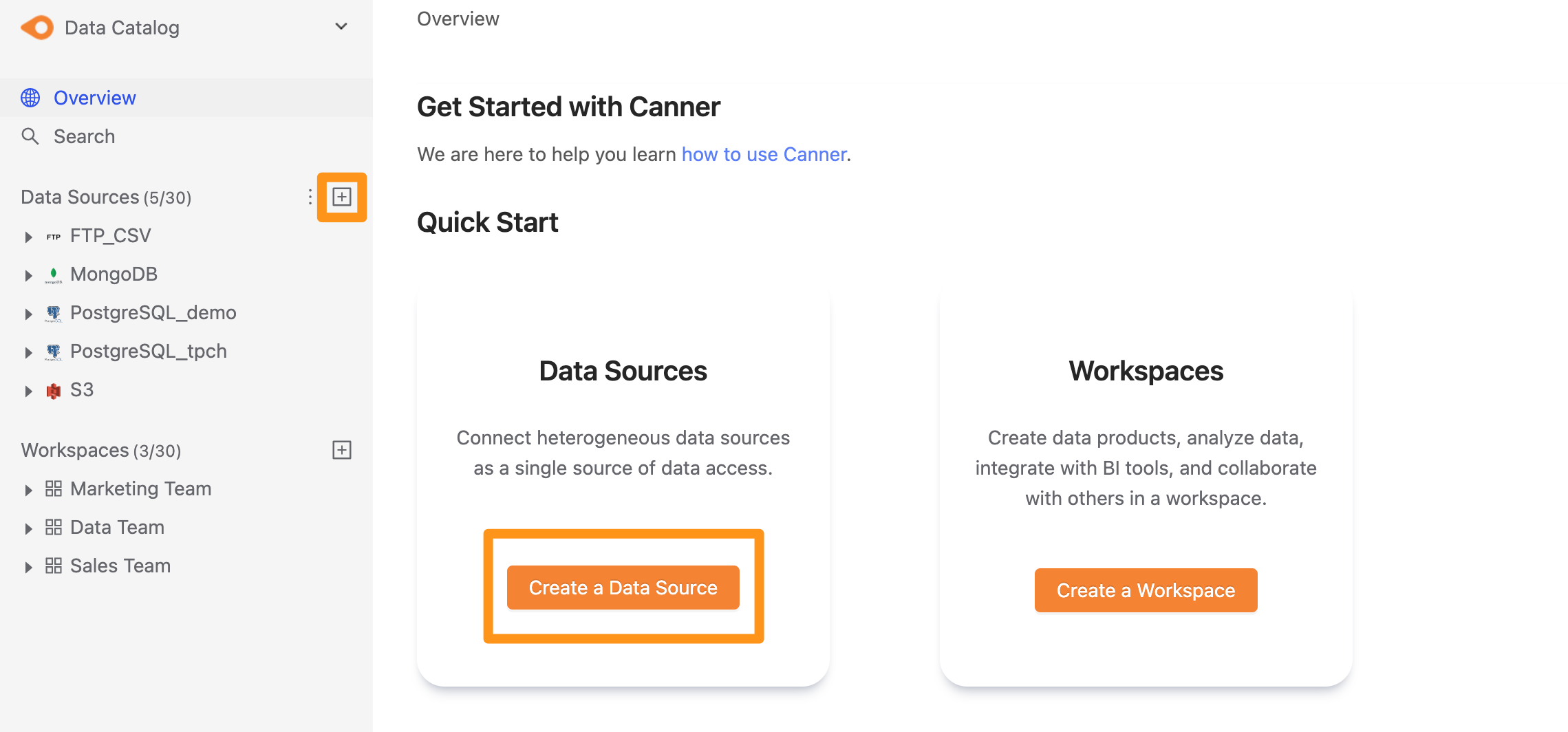
There are two ways to create a data source: click the "+" button next to Data Source in the sidebar, or click the Create a Data Source button on the Overview page.
Step 2: Configure the connection
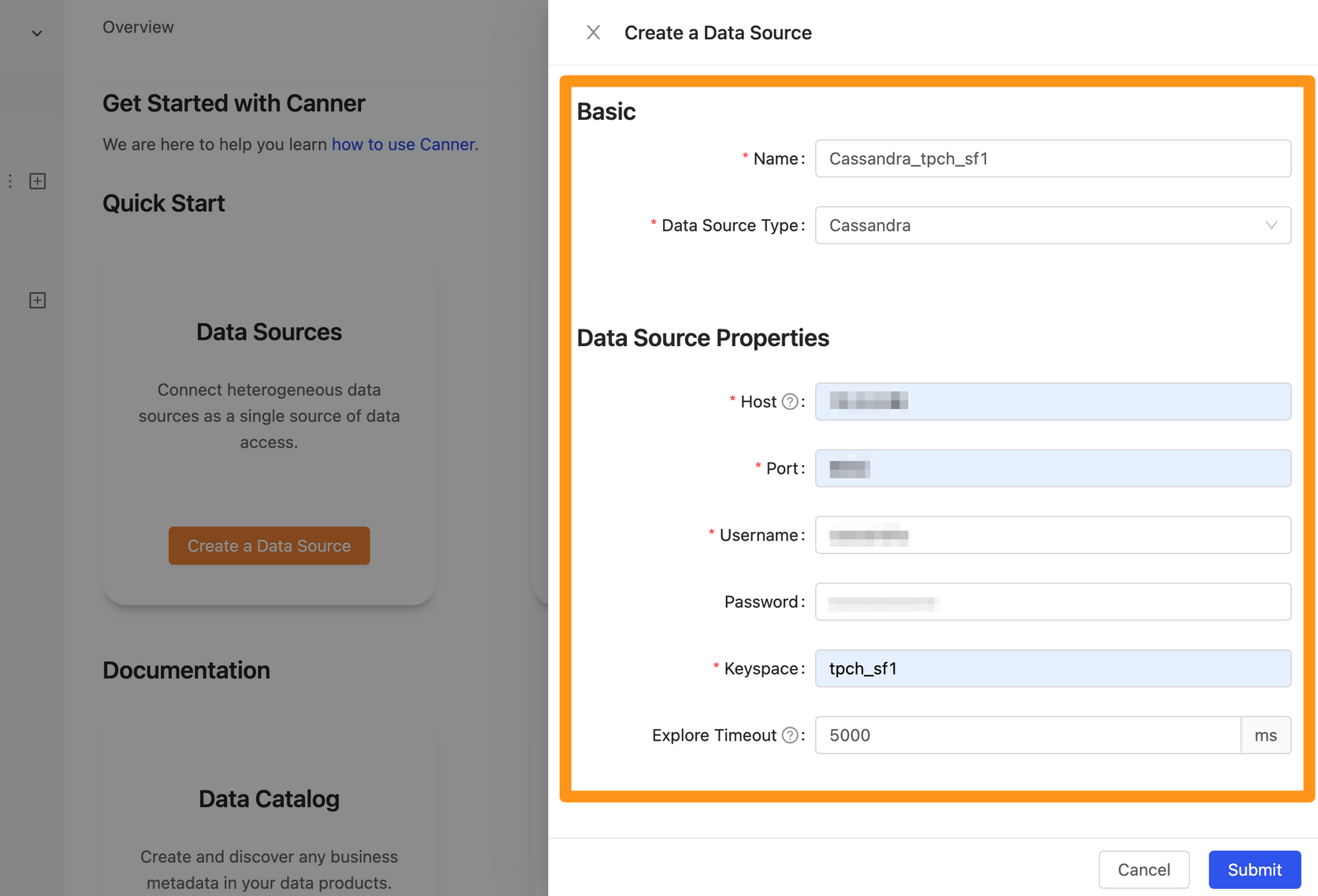
In the dialog form, fill in the connection information and click Submit.
Basic
- Name: The display name of the database in Canner Enterprise. You can change it later.
- Data Source Type: The database type. Select
Cassandra.
Data Source Properties
- Host: The hostname of the Cassandra database.
- Port: The port used by the Cassandra database.
- Username: The username used to connect to this Cassandra database.
- Password: The password used to connect to this Cassandra database.
- Keyspace: The keyspace to connect to in this Cassandra database.
- Explore Timeout: The timeout for connecting to the data source. If connecting takes longer than this, the system stops and shows a connection error. The default timeout is
5000 ms. If the database you are connecting to has many tables, consider increasing this timeout.
Step 3: Finish
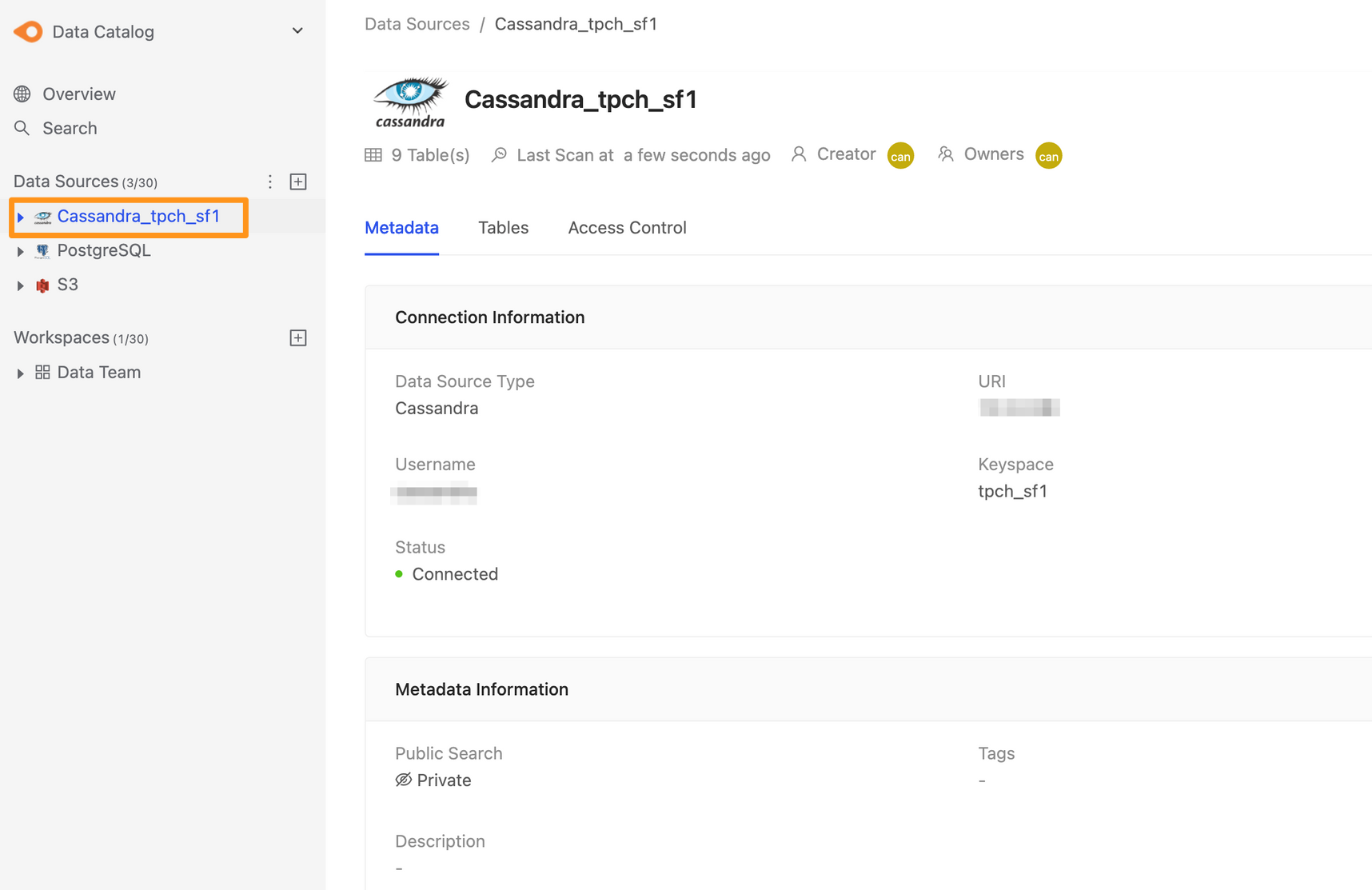
After you submit, the Cassandra data source appears in the sidebar shortly. Click it to open the data source details page.